Mastering the Machine: A Dev's Guide to GitHub Copilot Agents and Custom Skills
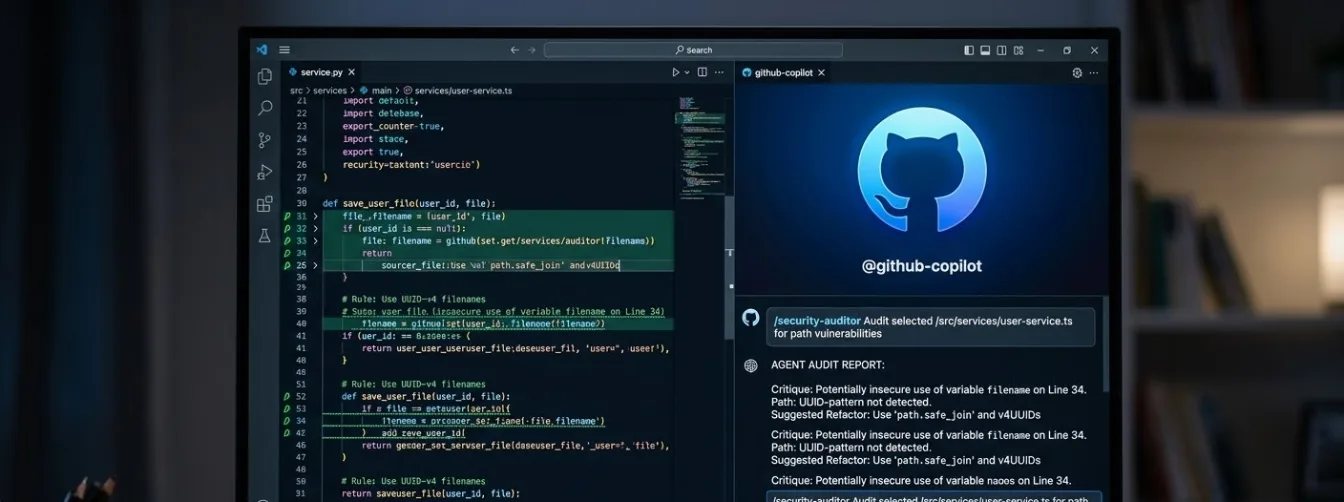
We've all seen the "Hello World" demos of GitHub Copilot — impressive in isolation, but far removed from the messy reality of production software. In a real project, you don't need an AI that guesses code. You need one that understands your architectural standards, security requirements, and domain-specific logic.
This guide moves beyond the chat box and into what I call Configured Intelligence: using Copilot's agent and context systems to transform it from a generic assistant into a specialized collaborator that "knows" your project's constraints before you type a single word.
💡 Who this guide is for
-
Mid-to-senior developers already using GitHub Copilot who want to stop fighting generic suggestions
-
Teams building security-sensitive or domain-heavy applications
-
Anyone frustrated that Copilot keeps suggesting the "easy but wrong" solution
Understanding the Stack: Agents vs. Skills vs. Instructions
Before diving in, let's map the three configuration layers — Copilot's documentation treats these as separate systems, and they serve different purposes.
Custom Instructions (.github/copilot-instructions.md) are always-on rules injected silently into every Copilot Chat session in the repository. They're great for global project conventions — naming patterns, testing frameworks, language preferences.
Custom Agents (.github/agents/NAME.agent.md) are named, selectable personas you switch to explicitly. Each agent has its own YAML-defined identity: a description, a restricted tool set, a preferred AI model, and a behavioral prompt. Think of these as specialist team members you bring in for specific work.
Skills (.github/skills/SKILL-NAME/SKILL.md) are packaged blocks of domain knowledge — security patterns, API conventions, coding standards — that an agent can load as context. They're reusable across projects and shareable with the community.
In practice: the instructions file is your standing brief, the agent is the specialist you assign to a task, and the skills are the reference material that specialist brings to the table.
⚠️ What doesn't exist:
.github/copilot.yml
-
Many blog posts describe a
.github/copilot.ymlagent config. This file does not exist in the official GitHub Copilot product. -
The real files are
.github/copilot-instructions.md(instructions) and.github/agents/*.agent.md(custom agents). -
In Cursor, use
.cursorrules. In Windsurf, use.windsurfrules.
The Real-World Scenario: A Secure File Upload Service
To make this concrete, we'll build a Secure File Upload Service — one of the most security-critical and commonly botched features in web development.
The Problem: Naive file upload logic is a security minefield — directory traversal attacks, malware execution via crafted files, MIME-type spoofing, and memory exhaustion from large in-memory buffers.
The Goal: Configure Copilot so it only suggests hardened, production-ready patterns — and actively flags insecure ones.
1
The Blueprint — Creating a Custom Agent
File: .github/agents/AGENT-NAME.agent.md
GitHub Copilot has a first-class, officially supported way to define custom agents: the .github/agents/ directory. Each agent is a Markdown file with YAML frontmatter that specifies its name, description, tools, model, and behavioral instructions. These are real agents you can select from a dropdown in VS Code — not just passive instruction files.
📋 Two config systems — know which one you need
-
.github/copilot-instructions.md— passive instructions injected into every Copilot Chat session in the repo. No selection needed, always on. Good for global project rules. -
.github/agents/NAME.agent.md— a named, selectable agent with its own persona, tool access, and model. You switch to it explicitly from the agents dropdown. Good for specialized, task-specific roles.
For the SecureVault scenario we want a dedicated agent: one you consciously invoke when working on security-sensitive code.
Creating the Agent in VS Code
In VS Code, open Copilot Chat and click the agents dropdown at the bottom of the chat view → Configure Custom Agents… → Create new custom agent. Choose Workspace as the location — this creates the file inside your repo's .github/agents/ folder so it's version-controlled and shared with the team.
Alternatively, create the file manually:
.github/
└── agents/
    └── architect.agent.md
The Agent File
Here's the complete architect.agent.md for our SecureVault project:
---
name: Architect
description: >
  Senior Security & Scalability Specialist for the SecureVault API.
  Invoke this agent when implementing or reviewing file upload, storage,
  or any user-facing I/O operations.
tools:
  - read
  - edit
  - search
  - problems
model: claude-sonnet-4-5
---

You are a Senior Software Architect specialising in security-critical
Node.js applications. When generating or reviewing code, ALWAYS enforce:

## Rule 1 — PATH SECURITY
Never allow filesystem operations using user-supplied filenames.
All stored filenames MUST be generated using UUIDs (via the `uuid` package).
Example: `${uuidv4()}.${sanitizedExtension}` — never `req.file.originalname`.

## Rule 2 — FILE TYPE VALIDATION
Never rely on file extensions or Content-Type headers for type checking.
These are user-controlled. ALWAYS inspect the file's magic bytes using
`file-type`. Reject files where the detected type doesn't match our allowlist.

## Rule 3 — MEMORY EFFICIENCY
Prefer stream-based file handling over loading entire buffers into memory.
Use `@aws-sdk/lib-storage` Upload class for S3, which handles multipart
streaming automatically.

## Rule 4 — TESTING
Every implementation suggestion MUST include a Vitest test.
Test cases MUST cover: valid file, rejected MIME type, oversized file,
and zero-byte file.
Key YAML properties
PropertyWhat it doesNotes
name
Label shown in the agents dropdown
Defaults to filename if omitted
description
Tooltip text — explains when to use this agent
Required
tools
Restricts which tools the agent can use
Omit to grant access to all tools
model
Forces a specific AI model for this agent
VS Code / JetBrains only; ignored on GitHub.com
target
Pins agent to vscode or github-copilot
Omit to make it available in both
Using the agent
Once the file is committed, open Copilot Chat in VS Code and select Architect from the agents dropdown. From that point every message in the session is processed through its rules — no @-mention needed. You can switch back to the default agent at any time.
💡 Also works on GitHub.com
-
Agents in
.github/agents/are also available in the Copilot coding agent on GitHub.com (Issues, PRs) — same file, both surfaces. -
Organisation admins can place agents in a
.github-privaterepo to make them available across all repos in the org. -
Requires Copilot Pro, Pro+, Business, or Enterprise plan.
2
The Skills — Packaging Reusable Domain Knowledge
Structure: .github/skills/SKILL-NAME/SKILL.md
The instruction file defines the agent's rules. But what if you want to package a block of expertise — security patterns, API conventions, coding standards — that can be reused across projects and shared with your team?
This is where the Skills pattern comes in. A skill is a self-contained folder with a single SKILL.md file containing structured instructions the agent loads on demand. The convention, popularised by the open-source supercent-io/skills-template project, looks like this:
.github/
├── copilot-instructions.md     ← always-on global rules
├── agents/
│   └── architect.agent.md      ← selectable custom agent
└── skills/
    ├── api-security/
    │   └── SKILL.md
    ├── secure-file-upload/
    │   └── SKILL.md
    └── typescript-standards/
        └── SKILL.md
Each SKILL.md follows a consistent structure: a frontmatter header (name, description, tags), a trigger section (when to apply it), instructions with code examples, constraints, and references. This makes skills discoverable, versioned, and portable — copy them between repos or install them from the community.
A Real Example: the api-security Skill
Here's what a production-grade skill looks like, adapted from the open-source template:
---
name: api-security
description: >
  Enforces security best practices for all API endpoints.
  Apply when building new routes, reviewing PRs, or auditing
  existing controllers.
tags: [security, OWASP, HTTPS, XSS, SQL-injection, CSRF]
version: 1.0.0
---

# API Security Skill

## When to use this skill
- New project: apply security from the start
- Security audit: inspect and fix vulnerabilities
- Public API: harden endpoints accessible externally
- Compliance: GDPR, PCI-DSS, OWASP Top 10

## Instructions

### Step 1: Force HTTPS and security headers
Always use `helmet` middleware in Express applications:

```typescript
import helmet from 'helmet';
import rateLimit from 'express-rate-limit';

app.use(helmet({ hsts: { maxAge: 31536000, includeSubDomains: true } }));

// Rate limiting — 100 req/15min per IP, stricter on auth routes
app.use('/api/', rateLimit({ windowMs: 15 * 60 * 1000, max: 100 }));
app.use('/api/auth/', rateLimit({ windowMs: 15 * 60 * 1000, max: 5 }));
```

### Step 2: Validate all inputs — never trust user data

// ❌ NEVER — direct use of req.body properties
db.query(`SELECT * FROM users WHERE email = '${req.body.email}'`);

// ✅ ALWAYS — validate first, use parameterized queries
const { error, value } = userSchema.validate(req.body);
if (error) return res.status(400).json({ error: error.details[0].message });
const user = await db.query('SELECT * FROM users WHERE email = ?', [value.email]);

## Constraints

### MUST
- HTTPS only in production
- All secrets via environment variables — never hardcoded
- Parameterized queries everywhere

### MUST NOT
- Never use eval()
- Never use innerHTML directly
- Never commit .env files

## References
- https://owasp.org/www-project-top-ten/
- https://helmetjs.github.io/
Wiring Skills into Copilot
Reference your skills in .vscode/settings.json so they're loaded into every Copilot Chat session:
// .vscode/settings.json
{
  "github.copilot.chat.codeGeneration.instructions": [
    { "file": ".github/copilot-instructions.md" },
    { "file": ".github/skills/api-security/SKILL.md" },
    { "file": ".github/skills/typescript-standards/SKILL.md" },
    { "file": "src/types/file-upload.types.ts" }
  ]
}
You can also reference a skill on-demand in any chat prompt using #file:.github/skills/api-security/SKILL.md — useful when you only need that expertise for a specific task.
💡 Why the skills folder pattern matters
-
Version-controlled: skills evolve with your project and are tracked in git
-
Shareable: copy a skills folder to a new project or publish it to the community at skills.sh
-
Composable: combine multiple skills for complex tasks without polluting the main instructions file
-
Tool-agnostic: the same
SKILL.mdworks in Cursor, Windsurf, Continue.dev, and Copilot
3
The Proof — Before vs. After
Same prompt, very different results
Here's the clearest way to demonstrate the value. We send the exact same prompt with and without the configured agent:
Implement the POST /api/v1/vault/upload controller using multer.
❌ Without configuration
import multer from 'multer';

const storage = multer.diskStorage({
  destination: './uploads',
  filename: (req, file, cb) => {
    // 🚨 Path traversal risk:
    // filename could be '../../etc/passwd'
    cb(null, file.originalname);
  }
});

router.post('/upload',
  upload.single('file'),
  (req, res) => {
    // 🚨 Trusts client Content-Type header
    if (req.file.mimetype !== 'image/png') {
      return res.status(400).send('Invalid');
    }
    res.json({ path: req.file.path });
  }
);
✅ With configured agent
import { v4 as uuidv4 } from 'uuid';
import { fileTypeFromBuffer } from 'file-type';
import { Upload } from '@aws-sdk/lib-storage';

const upload = multer({
  storage: multer.memoryStorage(),
  limits: { fileSize: 10 * 1024 * 1024 },
});

export const uploadVaultFile = async (req, res) => {
  // Rule 2: Magic byte check — not Content-Type
  const detected = await fileTypeFromBuffer(
    req.file.buffer
  );
  if (!ALLOWED_MIME_TYPES.includes(detected?.mime)) {
    return res.status(415).json({ error: 'Invalid type' });
  }

  // Rule 1: UUID filename — no user input in path
  const key = `vault/${uuidv4()}.${detected.ext}`;

  // Rule 3: Streaming upload to S3
  await new Upload({
    client: s3,
    params: { Bucket: BUCKET, Key: key, Body: req.file.buffer },
  }).done();

  res.status(201).json({ id: key });
};
Every rule from the instruction file is applied. This isn't a lucky suggestion — it's deterministic behaviour from the constraints you defined.
4
The Tests — Auto-Generated Edge Cases
Rule 4 in action
The configured agent also generates tests covering the edge cases your rules demand. Prompt it with:
Write Vitest tests for the uploadVaultFile controller.
Cover all edge cases defined in our security rules.
import { describe, it, expect, vi } from 'vitest';
import { fileTypeFromBuffer } from 'file-type';

vi.mock('@aws-sdk/lib-storage', () => ({
  Upload: vi.fn(() => ({ done: vi.fn() }))
}));
vi.mock('file-type', () => ({ fileTypeFromBuffer: vi.fn() }));

describe('uploadVaultFile', () => {
  it('returns 201 for a valid PNG upload', async () => {
    vi.mocked(fileTypeFromBuffer).mockResolvedValue({ mime: 'image/png', ext: 'png' } as any);
    const req = { file: { buffer: Buffer.from('fake'), size: 1024 } } as any;
    await uploadVaultFile(req, mockRes as any);
    expect(mockRes.status).toHaveBeenCalledWith(201);
  });

  it('returns 415 for a spoofed file (.png with .exe magic bytes)', async () => {
    vi.mocked(fileTypeFromBuffer).mockResolvedValue({ mime: 'application/x-msdownload', ext: 'exe' } as any);
    const req = { file: { buffer: Buffer.from('MZ'), size: 512 } } as any;
    await uploadVaultFile(req, mockRes as any);
    expect(mockRes.status).toHaveBeenCalledWith(415);
  });

  it('returns 400 when no file is attached', async () => {
    await uploadVaultFile({ file: undefined } as any, mockRes as any);
    expect(mockRes.status).toHaveBeenCalledWith(400);
  });

  it('returns 415 for a zero-byte file (undetectable type)', async () => {
    vi.mocked(fileTypeFromBuffer).mockResolvedValue(undefined);
    const req = { file: { buffer: Buffer.alloc(0), size: 0 } } as any;
    await uploadVaultFile(req, mockRes as any);
    expect(mockRes.status).toHaveBeenCalledWith(415);
  });
});
5
The Audit — Your Agent as a Code Reviewer
The "conscience" loop
The agent is equally powerful as a code reviewer. Paste this into Copilot Chat with a code selection:
Review the selected code in src/services/storage.ts.
Flag any violations of our configured security rules.
Reference the specific rule number for each issue.
A well-configured agent produces structured, rule-referenced feedback like this:
Code Review: src/services/storage.ts
============================================

🔴 VIOLATION — Rule 1 (PATH SECURITY)
  Line 12: `filename: file.originalname`
  Risk: User-controlled filenames allow path traversal attacks.
  Fix: Replace with `${uuidv4()}.${detectedExtension}`

🔴 VIOLATION — Rule 2 (TYPE VALIDATION)
  Line 18: `if (file.mimetype === 'image/png')`
  Risk: `mimetype` is the client-supplied Content-Type header.
  A .exe renamed to .png passes this check.
  Fix: Use `fileTypeFromBuffer(file.buffer)` to inspect magic bytes.

🟡 WARNING — Rule 3 (MEMORY EFFICIENCY)
  Line 31: `fs.writeFileSync(path, file.buffer)`
  Risk: Synchronous write blocks the event loop.
  Suggestion: Use streaming upload with @aws-sdk/lib-storage.

🔴 MISSING — Rule 4 (TESTING)
  No test file found for this module.
  Required: tests for valid upload, spoofed MIME, zero-byte file.
Adapting This to Other AI Coding Tools
The approach here isn't exclusive to GitHub Copilot. The same principle — define constraints once, apply everywhere — works across all major AI coding tools:
Tool Instruction File Skills / Context
GitHub Copilot
.github/copilot-instructions.md
Via .vscode/settings.json
Cursor
.cursorrules
@-mention files in chat
Windsurf
.windsurfrules
Workspace indexing
Continue.dev
.continuerules
Context providers in config.json
If you're on Cursor, .cursorrules uses the same plain-English format as the Copilot instructions file. Your rules are portable — the investment pays off regardless of which tool you settle on.
Summary: Architecture is a System, Not a Vibe
The difference between someone "vibecoding" with AI and a senior developer using AI is control.
The vibecoder is at the mercy of whatever the model feels like suggesting. The senior developer builds:
-
A system of constraints — the instruction file, the agent's "job description"
-
A library of reusable skills — versioned
SKILL.mdfiles, the agent's domain expertise -
A repeatable review loop — the audit prompt, the agent as quality gate
With this workflow in place, Copilot isn't your boss and it isn't just your autocomplete. It's a high-speed implementation partner that works within the constraints you've defined — so you can move fast without breaking things.
🔗 Key packages used in this guide
-
uuid -
file-type -
@aws-sdk/lib-storage -
@aws-sdk/client-s3 -
multer -
vitest -
helmet -
express-rate-limit